
Accessibility In Digital Media
This is a work in progress, if you have any questions or suggestions, please feel free to reach out to the V.P.S.S. office at vpss@binghamtonsa.org. We will love to hear from you, whether it is a question about Alt-Text/close captions or a suggestion on how we can improve this page.
Title II of the Americans with Disabilities Act (ADA) requires public institutions of higher education to ensure that all programs, services and activities are accessible to individuals with disabilities. This means that all digital content produced and shared by Binghamton University must be compliant with the WCAG (Web Content Accessibility Guidelines) 2.1 AA. Digital content includes websites, emails, e-newsletters, social media and more. This email contains important steps to ensure that your emails, email attachments and e-newsletters are accessible.
Lastly, please provide Alt-Text and closed captions in the future. There are many students who are unable to participate on campus because they do not have access to simple things, like promotional materials on Instagram and B-Engaged. This is a simple fix, but it can have monumental effects on individuals and maybe even your organizations. Who knows, an individual who could have transformed your club may have been unable to access your organization because they struggled to access your promotional materials. A final point: no one group benefits from this, we all do.
“Part of the problem is that we tend to think that equality is about treating everyone the same, when it’s not. It’s about fairness. It’s about equity of access.” – Judith Heumann, Being Heumann: An Unrepentant Memoir of a Disability Rights Activist
For any questions, comments, or concerns, please email accessibility@binghamtonsa.org.
Alt-Text
Alternative Text (Alt-Text)
Alt-text is a brief and accurate written description of an image. For the visually impaired, alt-text is essential. Without it they have no access to the majority of media.
How to write alt-text in Instagram:
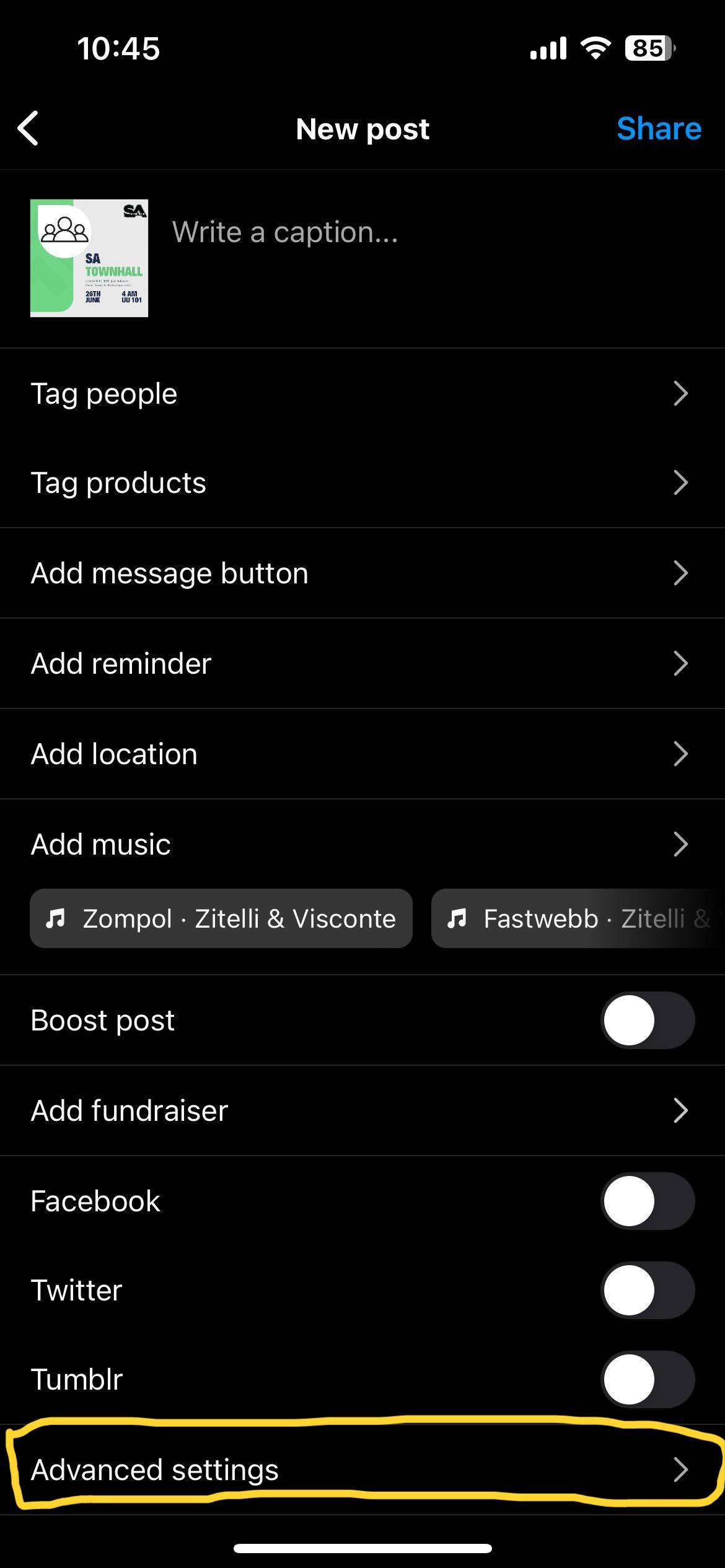
- Go to ‘Advanced Settings’
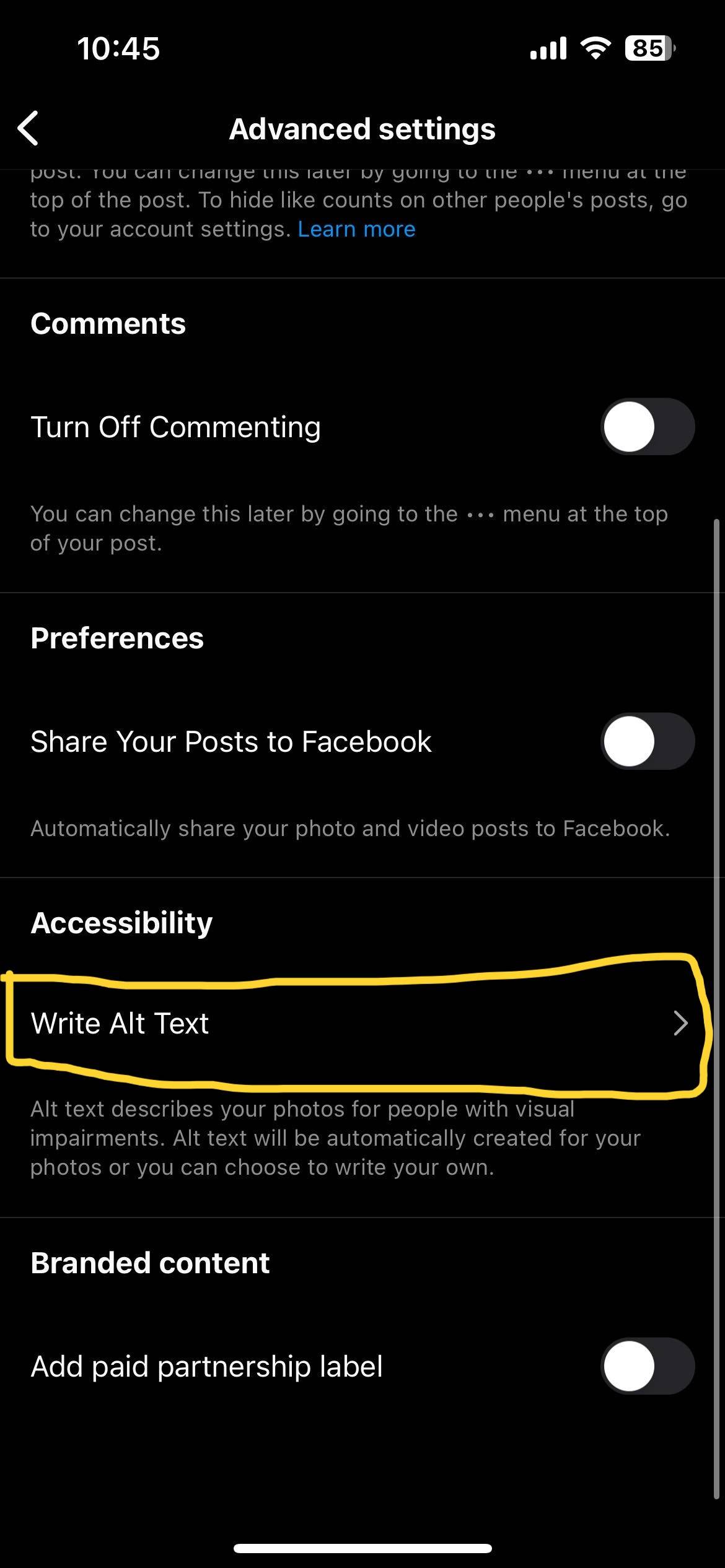
- Scroll down to ‘Accessibility’
- Select ‘Write Alt-text’
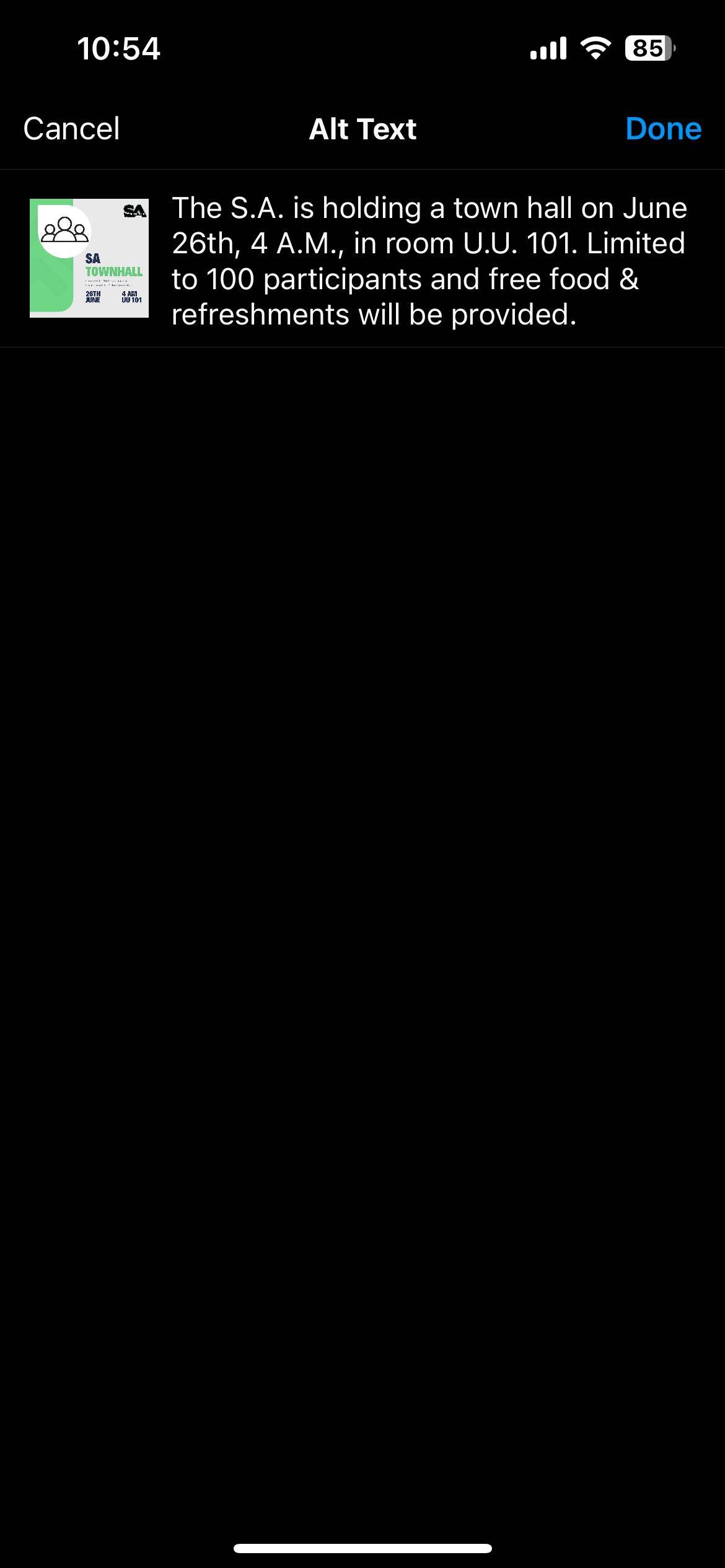
- Write your alt text description in the box and tap ‘Done’
- Copy this alt-text description into the caption below your normal caption
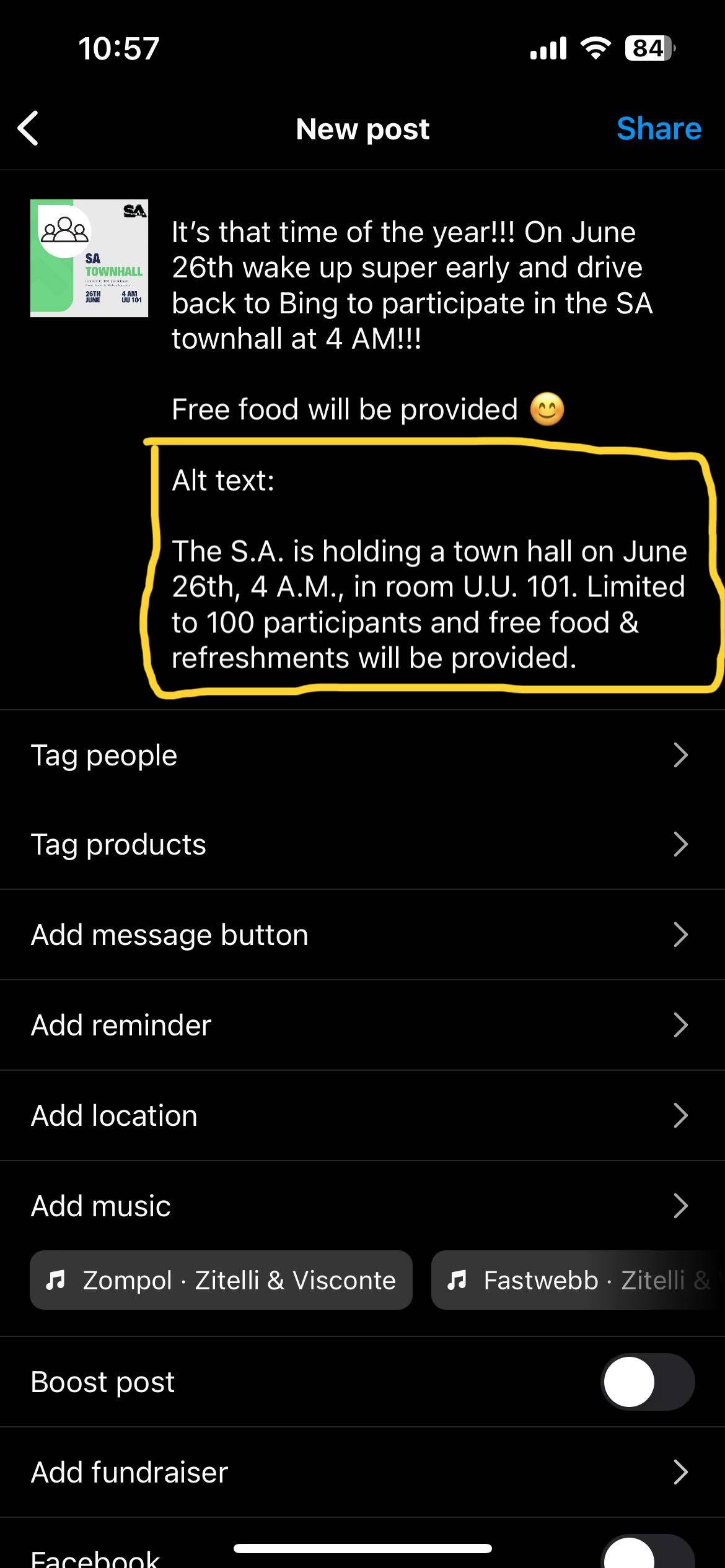
- Descriptions in “Alt-text” can only be accessed with screen readers, but not all students with visual disabilities have screen readers so they would only be able to access “Alt-text” if you write it in your caption
- Post!
Additional Notes:
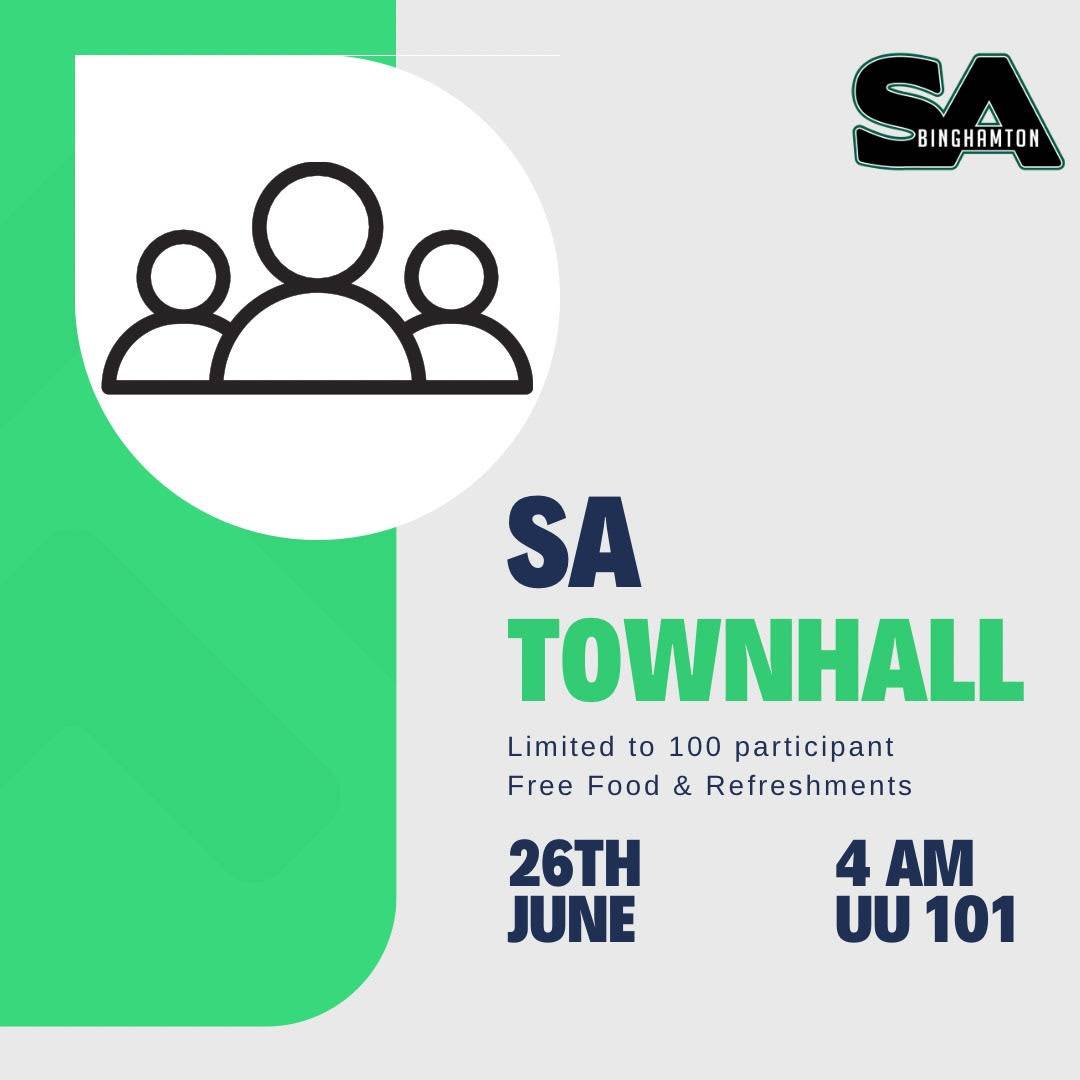
- If the post is a flier, include all key information (club, date, place, etc) in the Alt-text
- For hashtags, capitalize the first letter of each word
- #binghamtonuniversity should instead be written as #BinghamtonUniversity
- Without capitalization, the screen reader would read it as one word
- This may be referred to as Camel Case
- Acronyms must have periods
- “SA” should be written as “S.A.”
- Without periods, the screen reader would read it as one word
- If someone is specifically featured in the post, put their name in the Alt-Text
- Baxter Bearcat is playing volleyball on the peace quad with his 3 friends.
- If the visuals are not important for a reader to have the full context of the post, you may choose not to describe aesthetics and stick to describing the text.
- You want to organize the information in an order that makes it most legible.
- If you go from top to bottom but it does not make sense, choose to order the text in a way that does.
- Avoid being redundant
- No need to start your alt-text with “Picture of” or “Flyer saying”
Examples

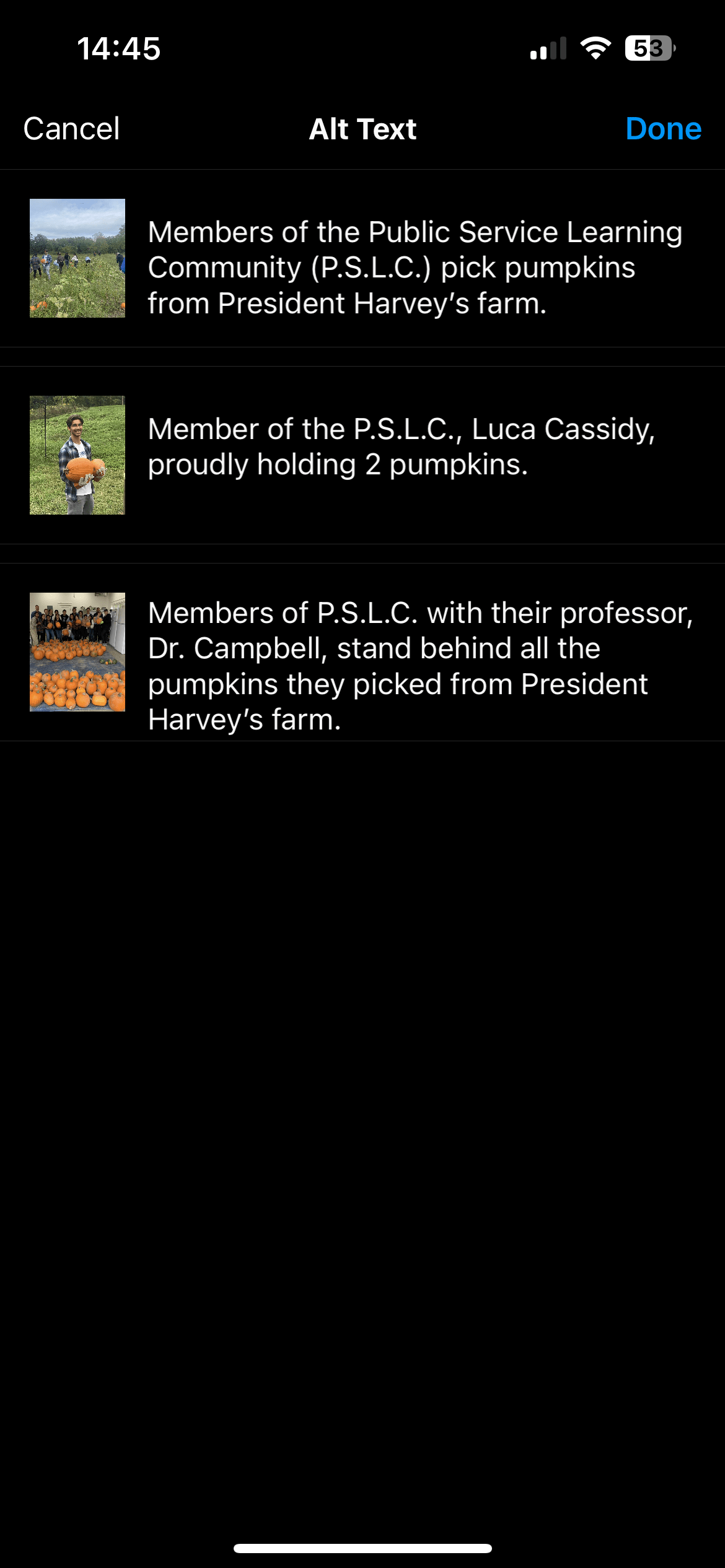
Alt Text
- Image 1: Members of the Public Service Learning Community (P.S.L.C.) pick pumpkins from President Harvey’s farm.
- Picture 2: Member of the P.S.L.C., Luca Cassidy, proudly holding 2 pumpkins.
- Picture 3: Members of P.S.L.C. with their professor, Dr. Campbell, stand behind all the pumpkins they picked from President Harvey’s farm.
Closed Captions
All students deserve equal access to videos, whether they face a visual, hearing, or language barrier, so videos should have closed captions. There are a couple of ways to add closed captions to your videos.
Instagram’s Captions:
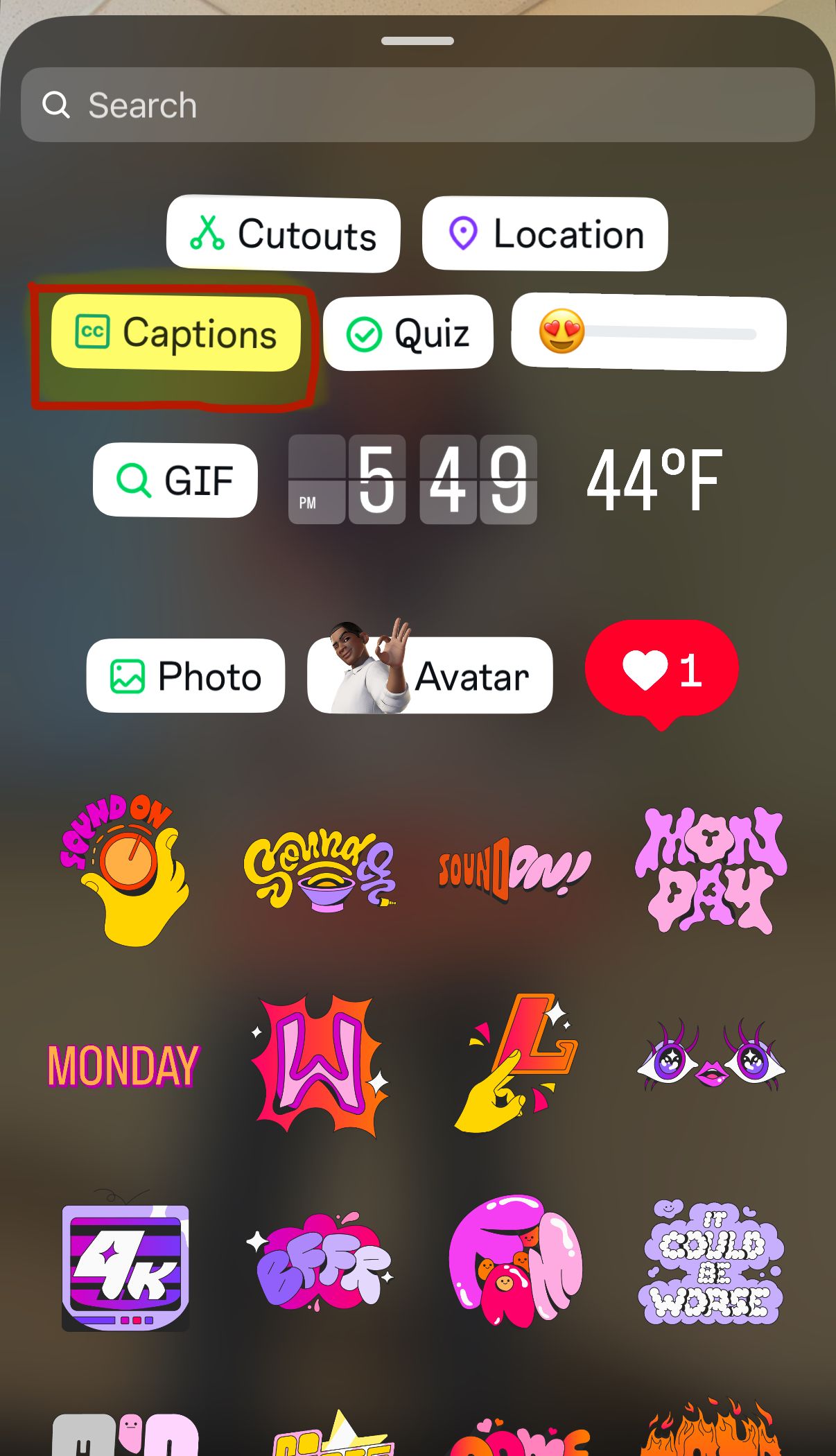
- Press “CAPTIONS” sticker, while editing video before posting
- You can now do this for both story post and reel posts
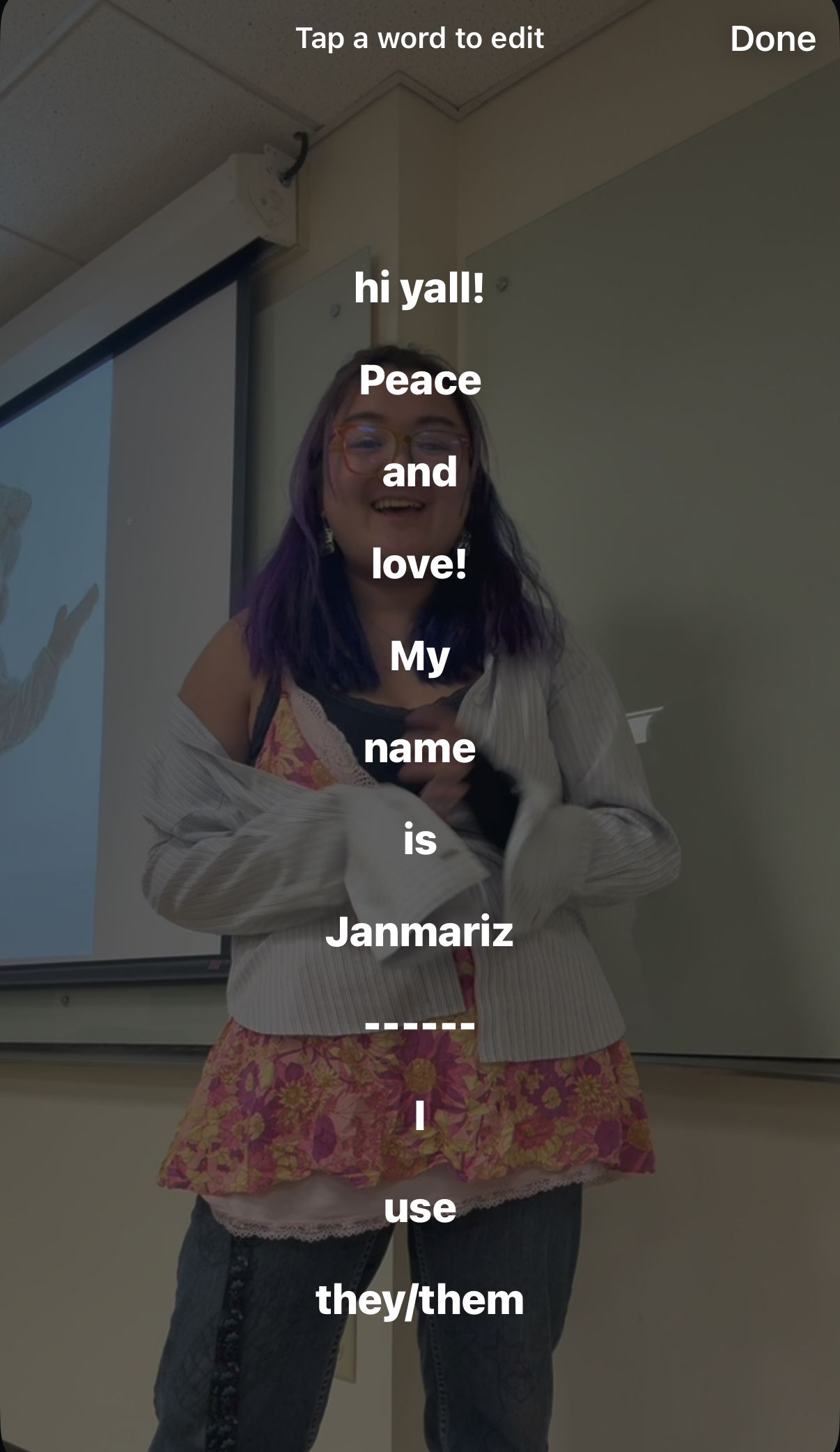
- Edit captions to match speech correctly
- You can change color and format, make something so text is contrasting enough to make text very legible and not blended with video.
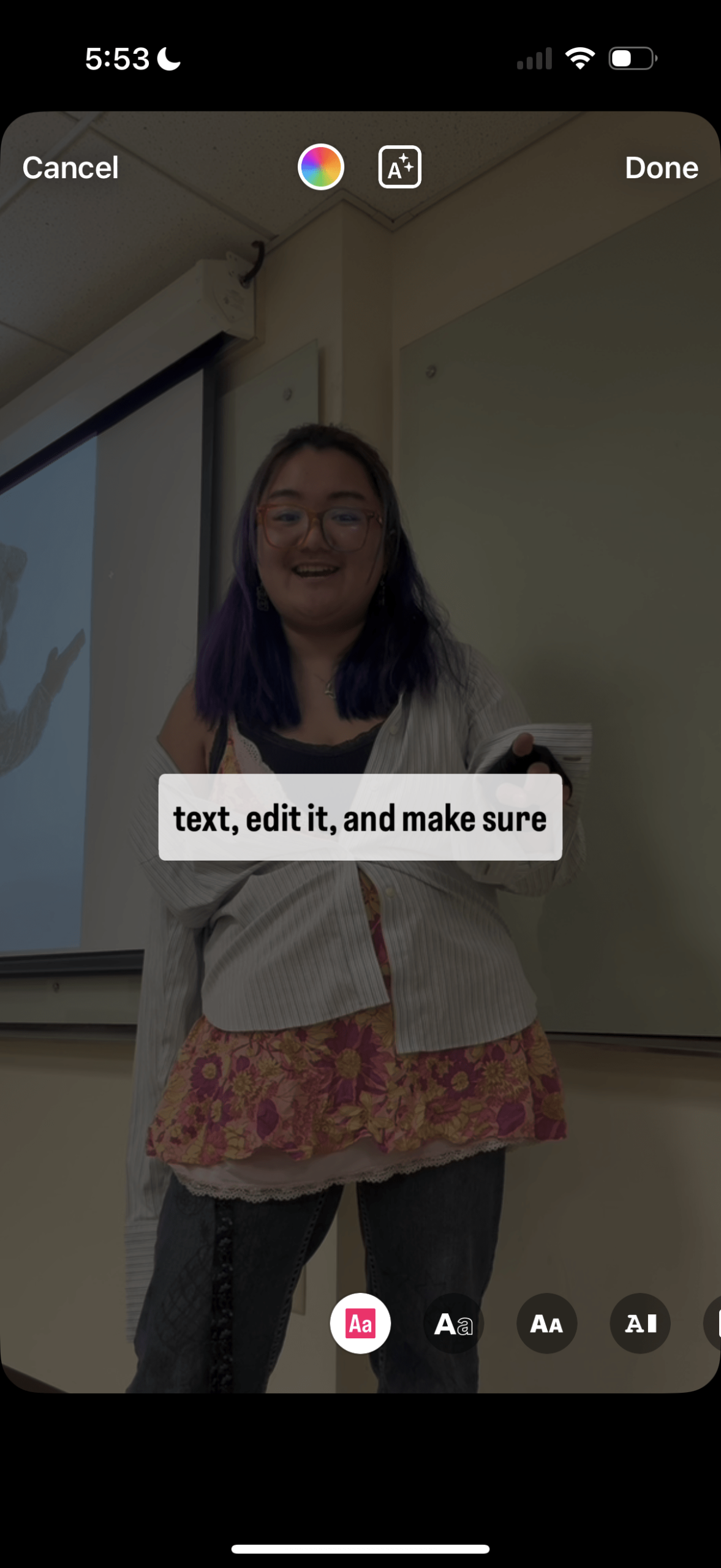
- Place text not too far up or far down to be within border of Reels
- You don’t want words to be cut off by any titles, the like button, or any more features.
- Do not hide or make too small, need to be obvious and large
- Ideally, leave space in your video while filming for text to have a nice background
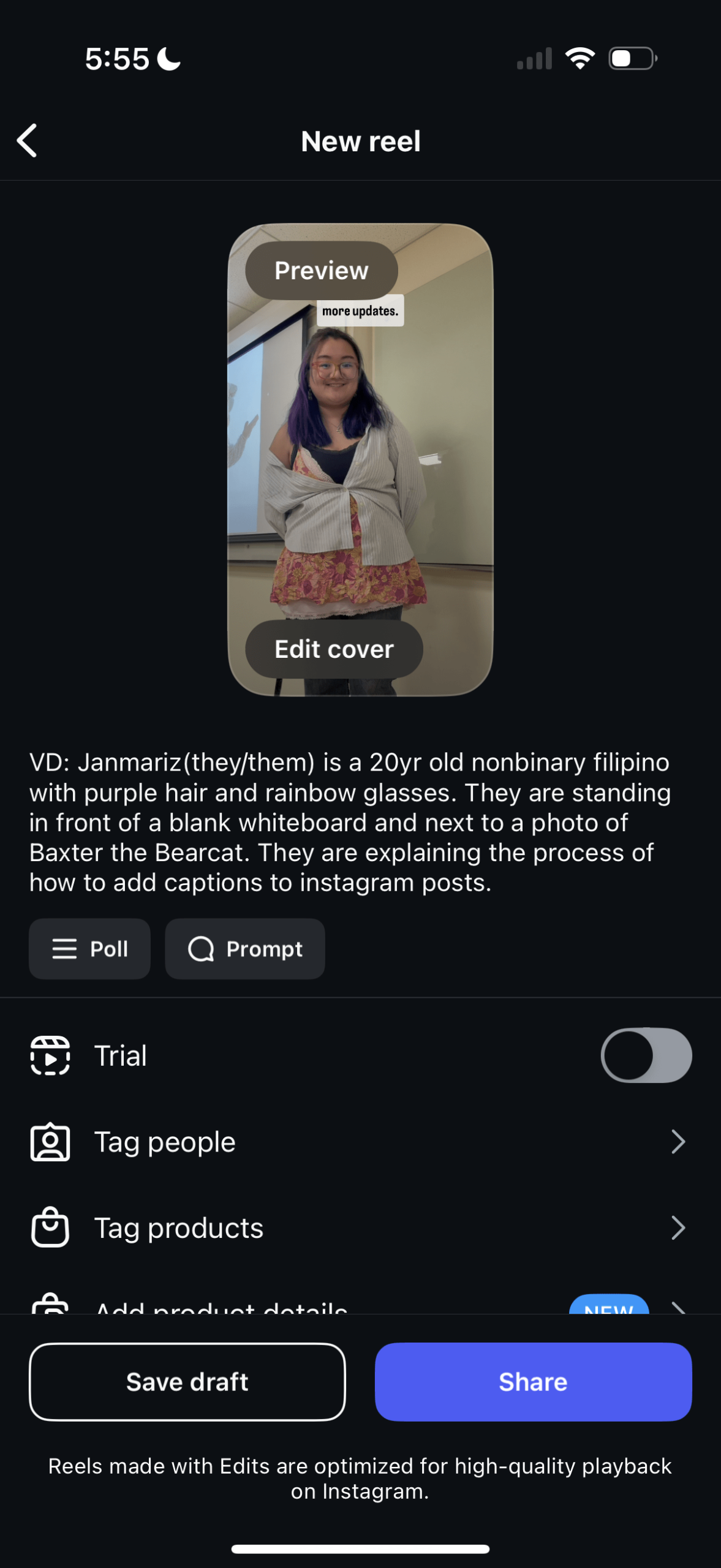
- Post! (In caption: best to add video description, please see next section for instructions)
The Video Closed-Caption Instruction Video
The step-by-step process:
- Upload video, then click captions
- Edit captions to match speech
- Edit captions to match desired display.
- Post with a Video Description in Caption, and you’ve done it (Congrats)!
- Double Check with “More Options”
- Ensure closed captions are enabled
Display: None
Your content goes here. Edit or remove this text inline or in the module Content settings. You can also style every aspect of this content in the module Design settings and even apply custom CSS to this text in the module Advanced settings.
Leadership Development
Fall Leadership Conference
Every fall, the office of the Executive Vice President puts on a leadership conference to update officers on important policy or procedure changes, help them learn new skills to better manage their organizations, and also build relationships with officers from other organizations. Attendance at the conference is mandatory for at least two officers of every organization, though everyone is encouraged to attend and grow from the experiences offered.
Click here to view the Fall Leadership Conference 2026 slides
Additional presentations at the Fall 2025 Leadership Conference were:
- SA Leadership 2025 DEI Presentation (Title VI)
- SA Leadership Conference B-Engaged Training Slides
- Title IX & VARCC
Spring Transition Meeting
Every spring, the office of the Executive Vice President puts on a leadership meeting to inform officers on club re-registration, e-board elections, and e-board transitions & onboarding. Attendance at the meeting is mandatory for at least two officers of every organization, though everyone is encouraged to attend and learn from the experiences offered.
Click here to view the Spring Transition Meeting 2025 slides
B-Engaged
The EVP Office also oversees the SA’s use of the campus student engagement system, B-Engaged. All active SA Chartered Organizations are listed on this platform and are expected to maintain an accurate officer roster, complete annual re-registration, publish all organization events, and more.
Whether you’re trying to join a new organization or just want to double check where your organization’s next GIM is going to be held, B-Engaged is the one-stop-shop for all things student organization.
Club Resources
Here are a few resources to help assist organizations with programming, space reservations on campus and internal needs:
- B-Engaged General Officer Training Video
- Event Parking Request Form
- Event Planning Guidelines
- EVP Equipment Rental Request Form
- EVP Storage Equipment Grant
- EVP Tutorial Videos
- SA Event Service Request Form
- SA Subsidiary Organization Penalty Procedures
- Union Space Reservation Guidelines for S.A. Chartered Organizations
- BThere Account Request Form
(Use B-mail login credentials to access form to request to be the sole designee of your S.A. chartered student org. to reserve Union spaces)
CapCut or Other Third Party Service for Longer Videos:
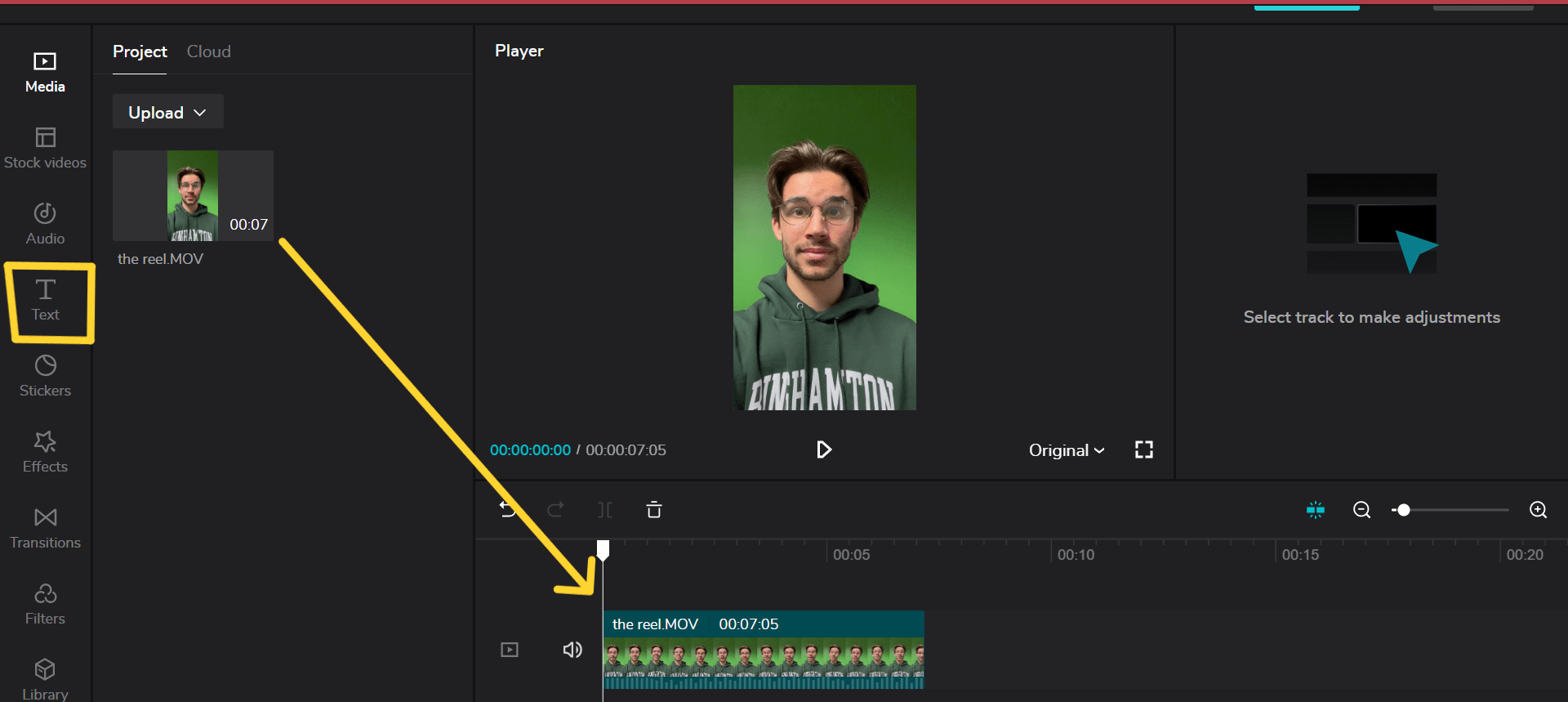
- Upload the video or video clips
- Press the “Text” option on the left
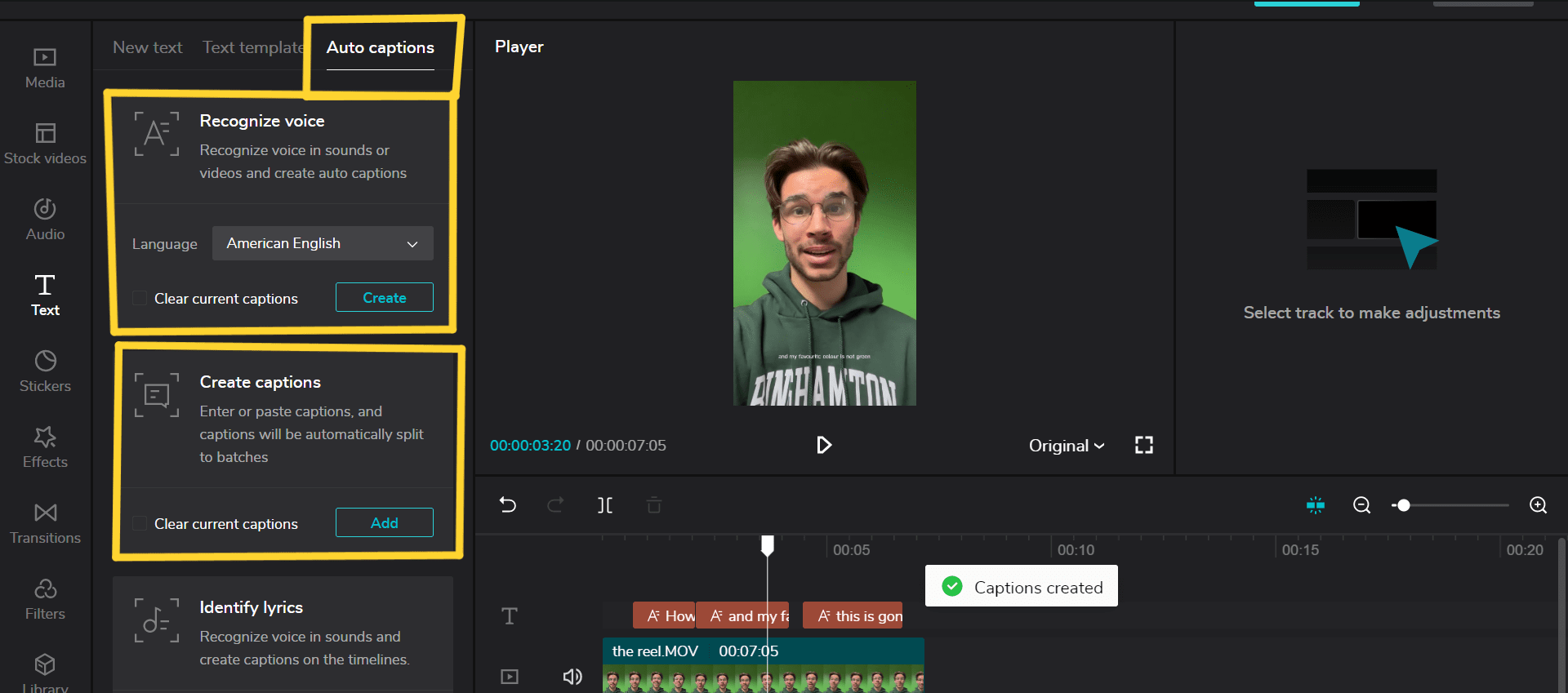
- Press “Auto Captions”
- You can either create automated closed captions or write your own
- You can edit the closed captions to your liking by clicking on them and playing around with the options on the right
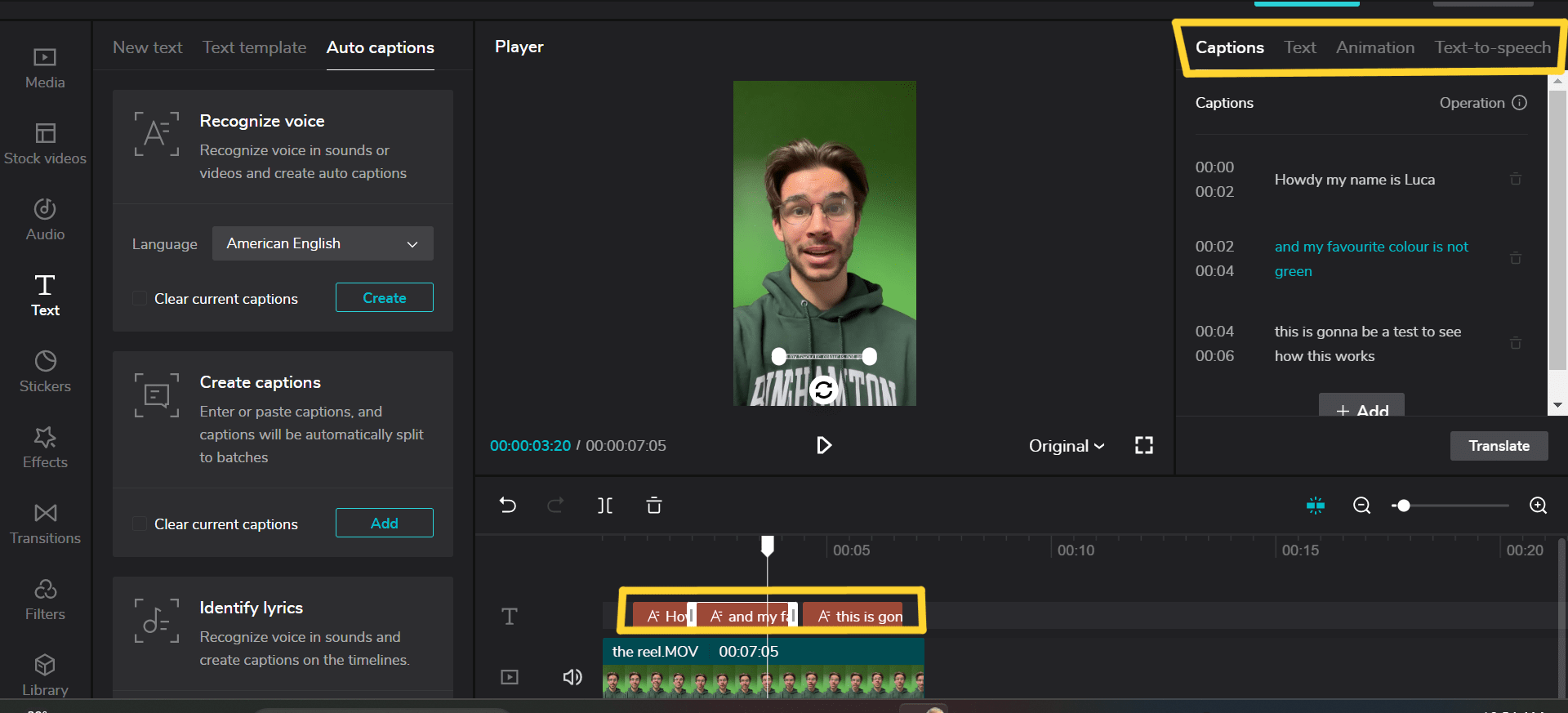
- Once done, press export, and then download
- Upload the video to Instagram. Remember to put video description in your caption
Display: None
Your content goes here. Edit or remove this text inline or in the module Content settings. You can also style every aspect of this content in the module Design settings and even apply custom CSS to this text in the module Advanced settings.
Image and Video Description (I.D.)
A brief, descriptive, and accurate written description of an image to help a disabled social media user, specifically blind or visually impaired, understand and appreciate an image.
- Use only the essential information. Avoid starting with “Picture of…”
- Scenic descriptions
- Use people “IDs”: Describe the individuals within a group by using the most basic identifier such as age, ethnicity, hair length/color, simple overview of outfit.
Video Descriptions (V.D.)
A brief, descriptive, and accurate written description of a video:
- You can include these at the top of your captions using the same procedure as alt-text and image descriptions, as alt-text box is not an option for videos.
- This can be helpful if there are different voices in the video that you want to distinguish, or if the video is without sound or contains text.
Additional Guidelines
Minimized Emoji Used:
- Use less emojis in your caption and alt-text!
- You can still use emojis, but avoid using long strings of emojis simply for comedy or aesthetic purposes.
- This is so a speech to text is not crowded with unnecessary information that could make the important text confusing or lost.
- For example this text: 💝🥰🗣️ Join us for our GIM!🦄✨🪩🌈
- Will be translated to this: “Heart with Ribbon, Smiling Face with Hearts, Speaking Silhouette Head, Join us for our “gim”!, Man in Business suit levitating, unicorn, sparkles, disco ball, rainbow”
Where/When to add a link:
- Add a link at the end of a post, so the URL is not read before anything else
- If possible ensure that link is in bio or even available to be sent through Direct Messages
Be-Enaged:
- Be-Engaged has sections to add Alt-Text to Flyers, do so using the same instructions for social media
- In many cases, you may have the original copy handy to copy and paste the text directly. This can be the best option to avoid retyping long blocks of text.
Adding Warnings:
- Content Warning about sensitive or triggering topics
- Flash Warning about videos with pulsating lights or graphics
- Loud Volume Warning about media with sounds louder than average
Emails
All images must include alternative text. In Gmail, once you have inserted an image, click the image and an “Edit alt text” option will appear under the image. B-Engaged also provides an “Image alt” box where you can enter alternative text.
- Images of flyers and other images of text must include alt text, as screen readers cannot read text within an image. Best practice is to write out text, as opposed to inserting an image with text in it.
- Screenshots must include alt text.
- Images in your signature must include alt text.
- Alternative Text: Tips and Best Practices
- Adding Alternative Text to B-Engaged Emails
- Adding Alternative Text to B-Engaged Newsletters
All attachments must be accessible. This requires specific steps to be taken either in the original document, spreadsheet or design file and/or in Adobe Acrobat Pro.
- PDFs; Word, Excel and Powerpoint docs; Google Docs, Sheets and Slides; etc.
- Helpful Accessibility Tools and Resources
Use descriptive subject lines.
Maintain sufficient color contrast. Text and background color combinations must have a minimum contrast ratio of 4.5:1 (3:1 for large text).
- Use tools such as the WebAIM Contrast Checker to verify compliance.
- We strongly recommend black text with white background.
Use readable, accessible fonts. Use clean, simple fonts that are easy to read. Sans serif is best. Avoid script or decorative typefaces.
Don’t use excessive formatting. Screen readers do not communicate the use of bold, italics, etc. It can also be distracting visually if overused.
Avoid conveying meaning by color alone. Use labels, patterns or text in addition to color coding.
Use descriptive and informative link text. Avoid generic link phrases like “click here.” Instead, use link text that clearly indicates the link’s purpose or destination.
Avoid tables. Tables require specific steps to be taken to be accessible. Tables are for data, not design.
Use headers. Especially for longer emails, use appropriate header structure. I.e. start with header 1, then use header 2 and so on.
Check your email to see what a screen reader will say. Each operating system has a built-in screen reader. You can experience a screen reader by going to the accessibility settings on your device — Mac (VoiceOver) and Windows (Narrator).
FAQ
What makes Alt-Text Accessible? To help a disabled social media user, specifically blind or visually impaired, understand and appreciate an image. In the case of fliers, to gain the imperative information provided through strictly visuals by providing this text to speech option.
Why can’t I see the option to see Alt-Text? This is why it is recommended that you add in the bio as well if possible. You will need to set up your phone to use “Voice-Over” or “Text to Speech” or a specific accessibility program/feature built in, or use another application to get this option to access the additional features on Instagram.
What is a screen reader? A screen reader is a device, app, or setting used to transform media into speech. This is mainly done through reading text, but can be done through reading images. Instagram’s and iPhones do not read images with their screen reader, and in many cases can block the contaminants of a post by reading the features of the app rather than the post itself if there is no alt-text.